Chapter 4 - Text Formatting
This chapter focuses on the techniques used to format and enhance the appearance of text in HTML documents. You will learn how to control font characteristics, apply text formatting, and use styling techniques to improve readability and visual appeal. The chapter introduces various methods for changing font settings, adjusting text properties, and creating emphasis through different font styles. In addition, the chapter explores the use of text and background colors to create attractive page designs and demonstrates how to incorporate special characters that cannot be typed directly from a standard keyboard. By the end of the chapter, you will have the skills needed to present textual content in a clear, professional, and visually engaging manner.
4.1 - Font Settings
Font Settings
When text is displayed in a browser, it appears in a default font face, size, style, and color. Most browsers use the Times New Roman font face at approximately 1 em (12-point) size and rendered in black. However, several style sheet settings permit you to change these default settings to bring a different look to your pages.
When working with standard print documents, it is common to use absolute units of measure when setting font size. Absolute units include points and pixels. With absolute units, the font size values render inconsistently across platforms and can't be resized by the browser. For this reason, relative units of measure should be used when setting the font-size for web documents. Relative units include the em and percentages. The common 12pt font size is equivalent to 1 em.
When working with text fonts, you need to keep in mind that the faces that are displayed in the browser are limited to those installed on the user's PC. Therefore, you need to be aware of what kinds of computers your visitors use and what type faces you expect to have been installed. It is best to stick with common faces unless your Web audience is known in advance. The following are common font faces in all versions of Windows and Mac, displayed here in 1 em size.
Windows font, Font family
arial
arial narrow (sans-serif)
comic sans ms (cursive)
courier new (monospace)
georgia (serif)
impact (sans-serif)
tahoma (sans-serif)
times new roman (serif)
verdana (sans-serif)
Mac Equivalents
helvetica
arial narrow (sans-serif)
comic sans ms (cursive)
courier new (monospace)
georgia (serif)
impact5 (sans-serif)
geneva(sans-serif)
times(serif)
verdana (sans-serif)
Figure 4-1. Common font faces.
Font Styles - TOP
There are six font style settings that can be used to add variety, interest, or emphasis to the text on a Web page. These property settings are listed in &&&&&-FIGURE BELOW-&&&&&&.
| Property: | Value |
|---|---|
| font-family | Font name can be any system font or the generic font family category values serif sans-serif cursive monospace fantasy Multiple values can be specified in order of preference, separated by commas. The first located font face is applied: font-family:arial,verdana,sans-serif |
| font-size | Font size specified as a unit of measurement, normally points (pt). If no unit of measurement is supplied, the default is pixels (px). Other font-size units include em (em), and percentages (%). |
| font-style | Font style specified as normal italic oblique |
| font-weight | Font weight specified as lighter normal bold bolder or a value from 100 (lightest) to 900 (darkest). Not all number values in the range are recognized by all browsers. |
| font-variant | Font variant specified as normal small-caps |
| font | A shorthand method of specifying a set of font styles by assigning values separated by spaces in the exact order: font-style font-variant font-weight font-size font-family. Unassigned values can be missing from the listing: style="font:italic bold .84em times new roman" |
Figure 4-2. Font style properties.
Any combinations of these styles can be applied to any text on the page. They can be associated with a <body> tag to apply to the document as a whole. They can be coded for a p selector to apply to all paragraphs. They can be coded as classes and applied with <span> tags surrounding letters, words, phrases, sentences, or other selected strings of text within a paragraph. They can be applied as classes through <div> tags to blocks of text.
The font-family property needs to be specified to change the browser's default setting from Times New Roman. When using an uncommon font family to display special font styles that may not be present on every user's computer, you should provide other, more common type faces from which the browser can choose. The font-family property gives these choices in a comma-separated list. The browser searches the computer system for the first matching type face and uses it to display the text. For instance, the following style sheet sets the standard font style for a page.
<style>body {font-family:helvetica, verdana, sans-serif}</style>Listing 4-1. Font family value choices.
First, the browser attempts to use the Helvetica type face. If it is not present on the user's system, the browser looks for the Verdana type face. If it is not present, the browser uses whatever built-in non-serif type face is available. The generic font names serif, non-serif, and monospace will always locate a type face that is similar to Times New Roman, Arial, and Courier, respectively.
You also need to set the font-size property in order to change the browser's default 1em (12-point) size. As mentioned earlier, font-size is commonly given in point sizes; however, it is best to use a relative unit of measure such as the em or percentages. Absolute units of measure such as points (pt) can render inconsistently across platforms and can't be resized by the User Agent (e.g browser). Keep the usage of such units for styling on media with fixed and known physical properties (e.g print).
The following table shows the different types of font-size property values and the recommended uses.
| Category | Values | Notes |
| Text Value | xx-small, x-small, small, medium (default), large, x-large, xx-large | A relative unit of measure. Scales well when text is resized in the browser. Text size options are limited. |
| Pixel Unit (px) | Numeric value with unit such as 12px | A relative unit of measure. Pixel display depends on screen resolution; may not scale well in every browser when the text is re-sized |
| Point Unit (pt) | Numeric value with unit such as 12pt | An absolute unit of measure. Use to configure print version of a web page. This measure may not scale in every browser when the text is resized. |
| Em Unit (em) | Numeric value with unit such as .75em | A relative unit of measure; Recommended by the W3C; Scales well when text is resized in the browser. |
| Percentage value (%) | Numeric value with unit such as 90% | A relative until of measure. Recommended by the W3C; Scales well when the text is resized in the browser. |
The font-style property is a choice between normal and italic styles; oblique usually is rendered in italic as well. Browser default is the normal style.
The font-weight property is a choice between normal and bold. The values lighter and bolder are not commonly recognized in browsers; neither are all numeric values recognized. Normally, values between 100 and 500 are displayed in normal weight, and values between 600 and 900 are displayed in bold.
The font-variant style of small-caps changes all letters to upper-case in a slightly smaller font size. Specifying normal returns the text to standard display.
Font style declarations can make use of individual property settings, or values can be combined in the single font property as a shorthand way of expressing the declarations. That is, a set of style sheet declarations can be made as shown in Listing 4-2,
{font-family:arial;font-variant:small-caps;font-size:.84em;font-weight:bold;font-style:italic}Listing 4-2. Font settings through use of individual style properties.
or combined as shown in Listing 4-3,
{font:italic small-caps bold 10pt arial}Listing 4-3. Font settings through use of a single font property.
with values separated by spaces. When using the font property, not all values need to be specified, but they need to be in the order: font-style font-variant font-weight font-size font-family. A typical declaration could include, for example, only the font-size and font-family values: {font:10pt arial}.
The following code uses an embedded style sheet with combinations of font settings. In this example all font stylings use the shorthand font property. Browser display of this page is shown in Figure 4-3.
<!DOCTYPE html><html lang="en"><head><title>Example Font Styles</title><style type="text/css">body {font:1em arial; text-indent:25px; margin:20px}.head {font:bold 1.17em; text-align:center; text-indent:0px}.offset {margin-left:25px; margin-right:25px; text-indent:0px}.cap {font:bold 2em}.fancy {font:1.09em comic sans ms}.style1 {font:bold 1.17em times new roman}.style2 {font:bold 1em courier new; color:fuchsia}</style></head><body><div class="head">Font Stylings</div><p><span class="cap">T</span>his page show various font stylings applied with an embedded style sheet. Styles are applied to the entire page and to selected portions of text on the page.</p><div class="offset"><p>These next two paragraphs are offset from surrounding paragraphs by their containment within a division. The division has left and right margins of 25 pixels and neither of the paragraphs have first-line indents.</p><p class="fancy">This paragraph is styled with a class that changes the font face and size. Inside this paragraph is a span tag that styles<span class="style1">this string of text</span>differently from the rest of the paragraph. In addition, this<span class="style2">word</span>has its own special style.</p></div></body></html>Listing 4-4. Font style settings for a page.
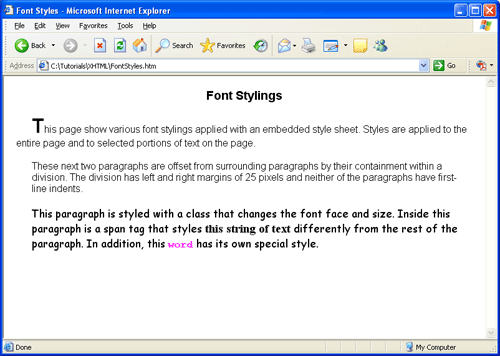
Figure 4-3.
Application of font styles.
Styling for the <body> tag sets the default format for the entire page. Thereafter, various style classes are applied to selected portions of the text.
Nested Styles - TOP
The above page includes nested style sheets wherein an inner style setting inherits and then temporarily overrides, or modifies, the settings of an outer style. The outer <body> style, for example, sets page display in 12-point Arial type with page margins of 20 pixels and paragraph indention of 25 pixels. For instance, these settings remains in effect unless overridden by the enclosed <div> styles which reset margins for the two enclosed paragraphs to 25 pixels and reset paragraph indention to 0 pixels. These division styles are further overridden in one of the enclosed paragraphs wherein font styling is changed to 13-point Comic Sans MS while retaining division margins and indention. Within this paragraph, <span> tags are used to override paragraph styling for individual text strings that take on different font faces and sizes.
Style sheets can be nested inside one another so that styles cascade down any number of levels. Ending the style settings occurs in reverse order. This point is illustrated by the following code showing an indented structure of <span> tags that apply and then remove increasing font sizes by using in-line style sheets.
<p><span style="font-size:1em">Here<span style="font-size:1.34em">are<span style="font-size:1.67em">styles<span style="font-size:2em">nested</span>inside</span>one</span>another.</span></p>Listing 4-5. Nested style settings using
<span>tags.
Here are styles nested inside one another.
Figure 4-4. Application of nested font styles using <span> tags.
Although you are not likely to nest styles to this extreme, the point is that each closing </span> tag, beginning with the inner-most, closes its associated style, and causes the styling to revert to the next outer-most style until all styles have been ended. Just remember to keep the opening and closing styling tags properly paired.
The above example also reemphasizes the fact that <span> tags do not have formatting characteristics of their own. Although they are coded on separate lines to show the nesting structure in this example, they do not cause line breaks or spaces when displayed in the browser. The display effect is the same as if coding were entered as the following continuous string.
<p><span style="font-size:1em">Here<span style="font-size:1.34em">are<span style="font-size:1.67em">styles<span style="font-size:2em">nested</span>inside</span>one</span>another.</span></p>Listing 4-6. Alternate coding for nested style settings.
In contrast, a <div> tag has the same styling purpose except that it produces a line break. The following code styles the above text string with <div> tags and produces the output shown in Figure 4-5.
<div style="font-size:1em">Here<div style="font-size:1.34em">are<div style="font-size:1.67em">styles<div style="font-size:2em">nested</div>inside</div>one</div>another.</div>Listing 4-7. Nested style settings using
<div>tags.
Figure 4-5. Application of nested font styles using <div> tags.
You need to be alert to these spacing differences since <span> and <div> tags are used extensively to apply styling to page elements.
Deprecated <font> Tag - TOP
Although not recognized in XHTML or HTML 5, older settings font styles were with the <font> tag. This tag, like a <span> tag, encloses text to be displayed in a specified face, size, and color. The general format for the <font> tag and its attributes are shown below.
<fontface="face1 [,face2] [,face3]"size="n|+n|-n"color="color">...text to be formatted...</font>
The face attribute specifies a comma-separated list of up to three font faces that can be applied to the text enclosed by the <font> tag. Font sizes can be set or changed with the size attribute. The value of this attribute can range from 1 to 7, smallest to largest. If a size is not specified, the default system font size of 3 is used, which is approximately 1 em type size. Note that font sizes are not specified in point sizes. The size of the font can be changed relative to the current size by using a "+" or "-" modifier. That is, an attribute value of size="+1" sets the font size to one size larger than the current setting.
You can set a text color by using the color attribute. The color value is given as a color name or hexadecimal value as discussed later in this tutorial.
Font Settings - TOP
The following interactive display shows the results of various font settings.
Dynamic Font Style Settings
The numerous font setting can be applied in any combination. Click the following buttons to view the effects of these settings.
Here is a paragraph of text with font settings that can be changed dynamically. Click the radio buttons below to view combinations of font style settings applied to this text.
| font-family arial times new roman courier comic sans ms verdana ms sans serif webdings |
font-size Pt units 7pt 8pt 9pt 10pt 12pt 14pt 18pt Em units .58em .67em .75em .83em 1em 1.2em 1.5em Px units 9px 11px 12px 13px 16px 18px 24px Percentage units 58% 60% 75% 83% 100% 117% 150% |
font-style normal italic |
font-weight normal bold |
font-variant normal small-caps |
TOP | NEXT: Text Properties
4.2 - Text Properties
Text Properties
The previous font settings can be paired with other style sheet properties to apply additional formatting to strings of text. The following table lists these properties that can bring more variety to text displays. Some of the properties pertain to styling the font itself, while others pertain to the structural arrangement of text within its container.
| Property: | Values |
|---|---|
| letter-spacing | Sets the horizontal letter spacing of an element's text. Values are: normal npx nem |
| line-height | Sets the line height of an element's text. A measurement in pixels, em's, or points is an actual height; a number or a percentage is a multiplier of the current font size. normal npx nem npt n n% |
| text-align | Sets the horizontal alignment of text within an element. Values are: left center right justify |
| text-decoration | Sets the decoration of text within an element. Values are: none line-through overline underline blink |
| text-indent | Sets the indention of text within an element. Values are: npx nem n% |
| text-shadow | Adds a drop shadow to the text. Values in order include: offset-x offset-y, blur-radius Where offset-x, offset-y, and blur-radius are length values (px, em, etc...), and color is a valid color value. The values offset-x and offset-y are required, while the others are optional. |
| text-transformation | Sets the capitalization of tex within an element. Values are: none Capitalize lowercase UPPERCASE |
| vertical-align | Sets the vertical alignment of contents within an element. Values are: bottom top baseline middle sub super text-bottom text-top |
| white-space | Sets how white space inside an element is treated. Values are:
|
| word-spacing | Sets the amount of spacing between words in an element. Values are: normal npx nem |
Figure 4-6. Text style properties and values.
You have already been introduced to the text-align and text-indent properties. The former controls how individual lines of text are aligned within a block of text; the latter controls the amount of spacing at the beginning of the first line of text.
There are two properties which control the amount of horizontal spacing across a line. The word-spacing property gives the amount of space between words; the letter-spacing property sets the space between letters. These properties are used to stretch (using positive values) or compress (using negative values) words and letters horizontally by adding or removing space between them.
The amount of vertical spacing in a text block is given by the line-height property. Although pixel, em, or point measurements can be used, a numeric value better equates to familiar settings. It is a multiplier of the current font size; therefore, a declaration of line-height:1.5 equates to line-and-a-half spacing and line-height:2 equates to double spacing. Note that fractional values are valid. Thus, a setting of line-height:.8 narrows the space between lines to 80% of the normal distance.
There are three text properties that are better thought of as font properties since they affect the style of characters. The text-decoration property draws a line over the characters (overline), under the characters (underline), or through the characters (line-through). The text-transform property converts text to upper-case characters, lower-case characters, or capitalized (capitalize) words.
To give text a drop shadow, the text-shadow property can be used. You must supply the x and y offset (offset-x offset-y) of the shadow, where positive x offsets the shadow to the right, and positive y offsets the shadow downwards. You can optionally provide a blur-radius to increase the blur of the shadow. Finally, you can set a color for your shadow. Text can have more than one drop shadows applied at once using comma separated values. The following is an example of a drop shadow.
text-shadow: 3px 3px #ccc;Drop Shadow
Figure 4-7. Example of how to add a drop shadow.
The vertical-align property has a number of different uses depending on which tag it is applied to. For example, as a font styling property it can convert characters to superscript (super) or subscript (sub) notation. As a text alignment property, it positions text relative to its container or relative to surrounding content. Examples of this property are given when discussing particular tags or styling needs.
Applying Text Properties - TOP
You can see the effects of some of these text settings in the page below and displayed in Figure 4-8. Output is designed to resemble a typed report.
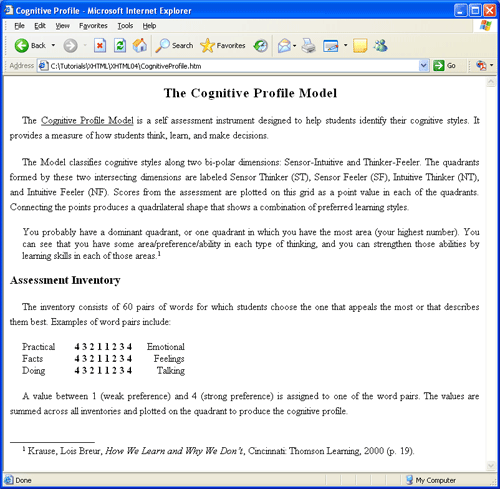
Figure 4-8. Using text styling to produce a report.
Most of the styling appears in an embedded style sheet defining style classes which are applied with <span> and <div> tags. In-line style sheets are used in one particular section of the page for one-time styles that are not shared by other sections of the document. The default format of the page is given by the selector for the <body> tag: 1 1/2 line spacing, paragraph indention, and justified text alignment.
<!DOCTYPE html><html lang="en"><head><meta charset="utf-8"><title>Cognitive Profile</title><style>body {line-height:1.5; text-indent:20px; text-align:justify} .head1 {text-align:center; letter-spacing:1.5px; font:bold 1.4em;} .head2 {text-indent:0px; font:bold 1.2em;} .uline {text-decoration:underline} .ital {font-style:italic} .offset {margin-left:20px; text-indent:0px; line-height:normal} .line {text-indent:0px} .super {font-size:0.7em; vertical-align:text-top} .footnote {line-height:normal; text-indent:20px}</style></head><body><divclass="head1">The Cognitive Profile Model</div><p>The<span class="uline">Cognitive Profile Model</span>is a self assessment instrument designed to help students identify their cognitive styles. It provides a measure of how students think, learn, and make decisions.</p><p>The Model classifies cognitive styles along two bi-polar dimensions: Sensor-Intuitive and Thinker-Feeler. The quadrants formed by these two intersecting dimensions are labeled Sensor Thinker (ST), Sensor Feeler (SF), Intuitive Thinker (NT), and Intuitive Feeler (NF). Scores from the assessment are plotted on this grid as a point value in each of the quadrants. Connecting the points produces a quadrilateral shape that shows a combination of preferred learning styles.</p><div class="offset">You probably have a dominant quadrant, or one quadrant in which you have the most area (your highest number). You can see that you have some area/preference/ability in each type of thinking, and you can strengthen those abilities by learning skills in each of those areas.<span class="super">1</span></div><p><span class="head2">Assessment Inventory</span></p><p>The inventory consists of 60 pairs of words for which students choose the one that appeals the most or that describes them best. Examples of word pairs include:</p><div class="offset"><span style="width: 80px; text-align:Left">Practical<br />Facts<br />Doing<br /></span><span style="width: 100px; text-align:center; font-weight:bold">4 3 2 1 1 2 3 4<br />4 3 2 1 1 2 3 4<br />4 3 2 1 1 2 3 4<br /></span><span style="width: 80px; text-align:Right">Emotional<br />Feelings<br />Talking<br /></span></div><p>A value between 1 (weak preference) and 4 (strong preference) is assigned to one of the word pairs. The values are summed across all inventories and plotted on the quadrant to produce the cognitive profile.</p><div><span class="line">_________________</span></div><div class="footnote"><span class="super">1</span>Krause, Lois Breur,<span class="ital">How We Learn and Why We Don't</span>, Cincinnati: Thomson Learning, 2000 (p. 19).</div></body></html>Listing 4-8. Code to produce a report.
A comment is probably in order about the following section of output, reproduced here with borders around the <div> and <span> areas to make them more obvious.
Practical
Facts
Doing
4 3 2 1 1 2 3 4
4 3 2 1 1 2 3 4
4 3 2 1 1 2 3 4
Emotional
Feelings
Talking
Figure 4-9. Embedded spans within a division.
By default, a <div> tag extends the width of the page as shown by the outer border area enclosing the three blocks of text. Being a block-level tag the <div> tag also causes a line break to set off its content from surrounding text.
<div class="offset"><span style="width:80px; text-align:left">Practical<br />Facts<br />Doing<br /></span><span style="width:100px; text-align:center; font-weight:bold">4 3 2 1 1 2 3 4<br />4 3 2 1 1 2 3 4<br />4 3 2 1 1 2 3 4<br /><span style="width:80px; text-align:right">Emotional<br />Feelings<br />Talking<br /></span></div>Listing: 4-9. Code to embed spans within a division.
A <span> tag is an in-line tag with no line breaks or spaces before or after. Therefore, multiple <span> tags coded one after another are displayed side by side by the browser. Although the words and numbers inside the <span> tags appear on separate lines, the contents of the tags themselves appear side by side inside the enclosing division.
In this example the <span> tags are also given fixed widths and various alignments to space their contents evenly. This is an example of using the width property, used earlier to size horizontal rules and graphic images, to set exact dimensions for a block of text. Further examples of sizing text blocks are presented in a later tutorial.
Listing 4-10. Enclosing a <span> tag inside a block-level tag.
Using Negative Measurements - TOP
When using pixel measurements it is often necessary to supply negative values to achieve desired results. The paragraphs shown in Figure 4-10 use -20px text indentions to produce an "underhung" paragraph format often used for bibliographic entries in reports.
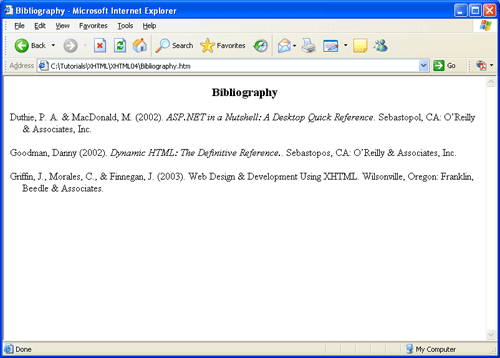
Figure 4-10. Using text styling to produce bibliographic entries.
As shown in Listing 4-11, styling is given by an enclosing <div> tag which applies the .biblio style class to its paragraphs. The left margin for all paragraphs is set to 20px. This setting indents the entire paragraph so that its -20px first-line indent extends the line to the left of the margin.
<style type="text/css">\ .head {text-align:center; font-weight:bold; font-size:1.2em;} .biblio {margin-left:20px; text-indent:-20px} .book {font-style:italic}</style><div class="head">Bibliography</div><div class="biblio">Duthie, P. A. & MacDonald, M. (2002).
<span class="book">ASP.NET in a Nutshell: A Desktop Quick Reference</span>. Sebastopol, CA: O'Reilly & Associates, Inc.</p><p>Goodman, Danny (2002). Dynamic HTML: The Definitive Reference.. Sebastopos, CA: O'Reilly & Associates, Inc.</p><p>Griffin, J., Morales, C., & Finnegan, J. (2003).<span class="book">Web Design & Development Using XHTML</span>. Wilsonville, Oregon: Franklin, Beedle & Associates.</p></div>Listing 4-11. Code to produce underhung paragraphs.
Letter and Word Spacing - TOP
Recall that both letter-spacing and word-spacing properties can take on either positive or negative values. The lines in Figure 4-11 are set to different letter- and word-spacing values for comparison of effects.
This is a normal letter-spaced sentence.
This is a 2px letter-spaced sentence.
This is a -1px letter-spaced sentence.
This is a normal word-spaced sentence.
This is a 5px word-spaced sentence.
This is a -1px word-spaced sentence.
Figure 4-11. Positive and negative letter and word spacing.
Text Settings - TOP
The following interactive display shows the results of various text settings.
Dynamic Text Style Settings
Text stylings can be applied in any combinations. The paragraph below can be styled dynamically to view the results of various settings.
Here is a paragraph of text that has various alignment characteristics that can be changed dynamically. Click the radio buttons below to view combinations of text style settings.
text-align
left
center
right
justifyline-height
normal
10px
15px
20pxletter-spacing
normal
-1px
2px
3pxtext-indent
0px
5px
15px
25xptext-transform
none
capitalize
uppercase
lowercasetext-decoration
none
line-through
overline
underline
TOP | NEXT: Font Style Tags
4.3 - Font Style Tags
Font Style and Semantic Tags
Text characters can take on styles such as bold, italic, underscore, and others to highlight or emphasize letters and words. Although these styles can be achieved with style sheet settings, there are also stand-alone tags that can be used to directly enclose and format text characters. In an older version of HTML, these tags were used purely stylistically without imparting meaning to their content; however, HTML5 has re-purposed many tags to give semantic meaning to the content they enclose. As such, these tags should only be used in their proper context, and not simply for their stylistic properties. These tags are known as phrase elements.
Phrase Elements - TOP
Phrase Elements, or logical style tags, have standardized meanings in all browsers. One reason for using them alongside CSS is to provide accessibility features for individuals with disabilities. For example, people who are visually impaired may not benefit from simply styling a word through CSS in bold font because it renders text visually in bold characters, but does not ensure that a visually impaired individual will be able to see it. On the other hand, by using the visually comparable <strong> logical style tag, a person using special reader software hears the text with audio emphasis.
The following table shows the logical style tags.
| Logical Style Tag | Purpose | Browser Display |
|---|---|---|
<abbr>abbreviation</abbr> |
Indicates an abbreviated form or acronym. You may include the full text version through the use of the title=" attribute. |
abbreviation |
<b>bold</b> |
Used to mark text which attention is drawn to but without any added emphasis or importance. | bold |
<cite>citation</cite> |
Contains a citation or a reference to other sources. | citation |
<code>code</code> |
Designates a fragment of computer code. | code |
<dfn>definition</dfn> |
Indicates that this is the defining instance of the enclosed term. | definition |
<em>emphasis</em> |
Indicates emphasis. | emphasis |
<i>italic</i> |
Indicates text set in a different mood in a manner indicating a different type of text such as a technical term or transliteration. | italic |
<kbd>keyboard</kbd> |
Represents user input, typically through a keyboard. | keyboard |
<mark>mark</mark> |
Indicates a selection of text that is highlighted or marked in a document for reference. | mark |
<q>quote</q> |
Denotes text which is quoted from another source. | quote |
<samp>sample</samp> |
Designates sample output from computer programs, scripts, etc. | sample |
<small>small</small> |
Used to denote small print side comments, such as copyrights or disclaimers. | small |
<s>strikeout</s> |
Indicates text which is no longer accurate or relevant. | |
<strong>strong</strong> |
Indicates stronger emphasis. | strong |
<sub>subscript</sub> |
Creates a subscript, and should only be used where the subscript is vital to meaning of the text. | subscript |
<sup>superscript</sup> |
Creates a superscript, and should only be used where the superscript is vital to meaning of the text. | superscript |
<var>variable</var> |
Indicates an instance of a variable or program argument. | variable |
Figure 4-12. Logical style tags.
The logical style tags are designed for situations in which the visual appearance of text in the browser needs to be augmented by other special renderings or information content. Using them where appropriate, helps promote web accessibility for everyone. It should be noted that these tags can also have style properties associated with them. For example, the style sheet declaration code {color:red} associates a color with the code selector. Therefore, any text marked as computer code with the <code> tag also displays in red.
Style Sheet Alternatives to Headings - TOP
Recall that the <hn> heading tags enclose strings of text for display in one of six heading styles. The number n in the tag ranges from 1 (largest) to 6 (smallest). Headings are displayed in bold characters in the default font face. Of course, you can apply a style sheet to a heading tag to modify its settings. For instance, the style declaration
<style>h2 {font-family:arial; font-style:italic}</style>Listing 4-12. Styling a heading tag.
displays the heading at size 2, but with italicized Arial font face overriding the normal heading display in Times New Roman. Other styles can be applied to the tag to display the heading with additional style characteristics that augment standard display of <h2> headings.
In the same way that logical font tags can be emulated with style sheets, so can headings be 'created with style sheets rather than using the special <hn> tags. The following stylesheet declares style classes identical to the six heading types. This coding is displayed in the browser as shown in Figure 4-13.
<style>.head1 {font:2em bold}.head2 {font:1.5em bold}.head3 {font:1.125em bold}.head4 {font:0.95em bold}.head5 {font:0.8em bold}.head6 {font:0.625em bold}</style><p class="head1">This is Heading Level 1</p><p class="head2">This is Heading Level 2</p><p class="head3">This is Heading Level 3</p><p class="head4">This is Heading Level 4</p><p class="head5">This is Heading Level 5</p><p class="head6">This is Heading Level 6</p>Listing 4-13. Styling heading tags.
This is Heading Level 1
This is Heading Level 2
This is Heading Level 3
This is Heading Level 4
This is Heading Level 5
This is Heading Level 6
Figure 4-13. Browser display of headings created with style declarations.
There are several alternatives for creating headings. You can either use <hn> tags with their default stylings, tags with modified stylings, or forego tags altogether and create your own heading classes. No one option is a best solution in all cases.
Group Selectors - TOP
Major and minor headings on a Web page should share common styling as visual clues to their common function as section breaks in page content. While differing in sizes and alignments, headings often have the same font faces and colors. Use of <hn> tags makes it easy to control heading styles within embedded style sheets through use of group selectors.
A group selector is two or more tag selectors, separated by commas, that share in the same styling. For example, the following style sheet declares a common font face and color for a set of <hn> tags, and establishes a common visual style for all headings used on the page.
<style>h1, h2, h3 {font-family:verdana; color:goldenrod}</style>Listing 4-14. Using group selectors to style a group of tags.
The selector h1, h2, h3 is a group selector. This means that the associated style declarations apply to all tags in this list. Assume further that <h1> headings are centered for major content breaks, that <h2> and <h3> headings are left aligned, and that <h3> headings are displayed in italic style. These additional group and individual stylings can be added to the above style sheet to produce the display shown in Figure 4-14.
<style>h1, h2, h3 {font-family:verdana; color:goldenrod}h1 {text-align:center}h2, h3 {text-align:left}h3 {font-style:italic}</style>Listing 4-15. Using group selectors to further style groups of tags.
Major Heading
Side Heading
Side Heading - TOP
Figure 4-14. Browser display of headings styled with group selectors.
Group selectors are no different in effect from simple selectors. They just permit a shorthand way to declare shared styles. They also illustrate quite clearly the concept of style inheritance. In the above example, all three headings inherit the same font face and color from their participation in the overall h1, h2, h3 group selector; <h2> and <h3> headings inherit left alignment from their participation in the h2, h3 group selector. By taking advantage of such inheritance, it saves from having to code separate, duplicate styles for each and every tag selector.
Incidentally, it is not necessary that group selectors be composed of the same tag type. All tags that share the same style can be part of the group selector. For example, the group selector shown in Listing 4-16 indicates that all paragraphs, spans, and divisions on a page share the same type face and size.
<style>p, span, div {font-family:verdana; font-size:0.8em;}</style>Listing 4-16. Using group selectors to style different tags.
The <pre> Tag - TOP
Normally, no formatting of text takes place in the browser unless it is surrounded with HTML tags. Although editor code may be indented and line-spaced by using the Space Bar and Enter keys, all contiguous spaces and lines are collapsed to a single blank space in the browser. There is one case, though, where text as formatted in the editor can be displayed in identical fashion in the browser.
A block of text surrounded by the <pre> ("preformatted" or "preserve" spacing) block-level tag is displayed in a monospace font in precisely the way it is formatted in the editor. That is, blank spaces and blank lines used to format HTML code in the editor are faithfully reproduced in the browser, space by space and line by line. The <pre> tag is often used to create simple tables where alignment of columns is produced with embedded blank spaces. For example, the following code produces a table that is displayed in the browser identical to the way it is typed in the editor.
<pre>
                  Table 1
              Sales by Region
----------------------------------------------
Region/Year   2000     2001     2002     2003
----------------------------------------------
East          35.2     37.4     39.8     40.0
West          28.0     25.6     27.4     29.8
South        102.3     86.1     98.6    100.2
North         10.5      8.6      9.8     10.4
----------------------------------------------
</pre>
Listing 4-17. Using the
<pre>tag to retain editor spacing.
Since all text lines are surrounded by the <pre> tag, columns can be aligned with the Space Bar and line breaks made with the Enter key. This alignment and spacing is possible because both the editor and browser display characters in a monospace font producing equally spaced characters. You need to make sure that your editor uses a monospace font such as Courier New in order to accurately space the text. Browser output is not shown here because it is identical to the table arrangement produced in the editor.
You can include minor styling of the monospaced text as long as the formatting does not change character sizes, thereby changing the amount of space between letters. For example, the following code, dresses up the previous table with bold and italic font styles along with a text color. When practicing, make sure that you align the information in the table properly before adding extra style tags that visually displace the aligned text when viewed in the editor. These extra tags inside the <pre> tag do not add spacing to the table when viewed in the browser.
<pre style="color:blue">
                  <b>Table 1</b>
              <b>Sales by Region</b>
----------------------------------------------
<b><i>Region/Year   2000     2001     2002     2003</i></b>
----------------------------------------------
<b>East</b>          35.2     37.4     39.8     40.0
<b>West</b>          28.0     25.6     27.4     29.8
<b>South</b>        102.3     86.1     98.6    100.2
<b>North</b>         10.5      8.6      9.8     10.4
----------------------------------------------
</pre>
Listing 4-18. Adding styling to text formatted with the
<pre>tag.
                  Table 1
              Sales by Region
----------------------------------------------
Region/Year   2000     2001     2002     2003
----------------------------------------------
East          35.2     37.4     39.8     40.0
West          28.0     25.6     27.4     29.8
South        102.3     86.1     98.6    100.2
North         10.5      8.6      9.8     10.4
----------------------------------------------
Figure 4-15. Browser display of styled table formatted with
<pre>tag.
Although the above examples show coding for a data table, a later tutorial describes use of formatting tags especially designed for laying out tables. Although these table tags are the most common way to display rows and columns of tabular information, you can use the <pre> tag as a quick and easy way to accomplish similar displays.
TOP | NEXT: Text & Background Colors
4.4 - Text and Background Colors
Text and Background Colors
Browsers display black text on a white background unless different color style settings are applied. A background color for the page or for any text container can also be specified. Text and background colors can be designated in style sheets using hexadecimal values, RGB values, or color names.
Hexadecimal Colors - TOP
#rrggbb
A value of hexadecimal "00" (the smallest 2-digit hexadecimal value and equivalent to decimal 0) in the color position means the absence of the color; a value of "FF" (the largest 2-digit hexadecimal value and equivalent to decimal 255) means the color is at full intensity. Thus, a hexadecimal value of "#FF0000" represents the color red: "FF" in the "rr" position assigns full intensity to red; "00" in the "gg" and "bb" positions represent the absence of green and blue color intensities.
Likewise, a value of "#00FF00" is (lime) green and a value of "#0000FF" is blue. White is represented by all colors at full intensity: "#FFFFFF"; black is the absence of color: "#000000". In between these extremes are colors of every hue and intensity to over 16 million colors although not all colors can be displayed accurately on all computer monitors.
Some colors can also be represented in the shortened three digit format of #rgb. For example, the color #F00 is equal to the color #FF0000, and the color #1BF is the same as #11BBFF.
RGB Colors - TOP
An RGB color specification uses decimal values to indicate the combined intensities of red, green, and blue hues. Values can range from 0 (smallest) through 255 (largest). These RGB values are given in style sheets in the following format,
rgb(r,g,b)
using a decimal value to indicate the intensities of the three colors. Thus, coding an RGB value of rgb(255,0,0) indicates red, rgb(0,255,0) indicates (lime) green, and rgb(0,0,255) indicates blue. As in the case with hexadecimal values, a full spectrum of over 16 million colors can be represented by combinations of red, green, and blue intensities.
Color Names - TOP
Colors can also be specified with special color names. Most browsers recognize over 200 color names. The common set of 16 Windows colors is shown below by color names and their associated hexadecimal and RGB values.
| Color Name | Hex Value | RGB Value |
|---|---|---|
| Black | #000000 | rgb(0,0,0) |
| Maroon | #800000 | rgb(128,0,0) |
| Green | #008000 | rgb(0,128,0) |
| Olive | #808000 | rgb(128,128,0) |
| Navy | #000080 | rgb(0,0,128) |
| Purple | #800080 | rgb(128,0,128) |
| Teal | #008080 | rgb(0,128,128) |
| Silver | #C0C0C0 | rgb(192,192,192) |
| Gray | #808080 | rgb(128,128,128) |
| Red | #FF0000 | rgb(255,0,0) |
| Lime | #00FF00 | rgb(0,255,0) |
| Yellow | #FFFF00 | rgb(255,255,0) |
| Blue | #0000FF | rgb(0,0,255) |
| Fuchsia | #FF00FF | rgb(255,0,255) |
| Aqua | #00FFFF | rgb(0,255,255) |
| White | #FFFFFF | rgb(255,255,255) |
Figure 4-16. Window color names and Hex and RGB values.
Color Picker - TOP
Included below is an interactive color picker. Move the red, blue, and green sliders up and down to adjust their individual values. By combining various amounts of each color you can make new colors. The resulting rgb() and hexadecimal color values are shown below the color.
Red
Green
Blue
rgb(0, 0, 0)
#000000
Color Styles Properties - TOP
Colors can be applied either to the text on a page or to the background of the container holding the text. These two style properties are shown in the following table.
| Color Name | Hex Value |
|---|---|
| color | #rrggbb rgb(r,g,b) color name |
| background-color | #rrggbb rgb(r,g,b) color name |
Listing 4-17. Color style properties.
Colors can be applied as broadly as the entire page by associating a color style with the <body> tag down to a single text character by associating a color style with a <span> tag surrounding the character. Hexadecimal, RGB, and color-name values can be used in any combination for specifying color properties.
Variations of background and foreground colors are shown in the following code. Browser display for this page appears in Figure 4-18.
<!DOCTYPE html><html lang="en"><head><meta charset="utf-8"><title>Color Page</title><style>body {color:white; background-color:silver}.PARAstyle {color:rgb(0,0,0)}.PHRASEstyle {color:#0000FF}.TEXTstyle {color:green; background-color:yellow}</style></head><body><p>This page contains three paragraphs. The entire page is styled with a background color of silver and a foreground color of white. This first paragraph uses these page default color settings.</p><p class="PARAstyle">This second paragraph sets its own text color to black using an RGB value. Within this paragraph <span class="PHRASEstyle">this string of text is changed to blue, while the phrase <span class="TEXTstyle"><b>green on yellow</b></span> has its own color style setting.</span></p><p>This third paragraph reverts to the default color settings for the page.</p></body></html>Listing 4-19. Code to apply color style properties to a page.
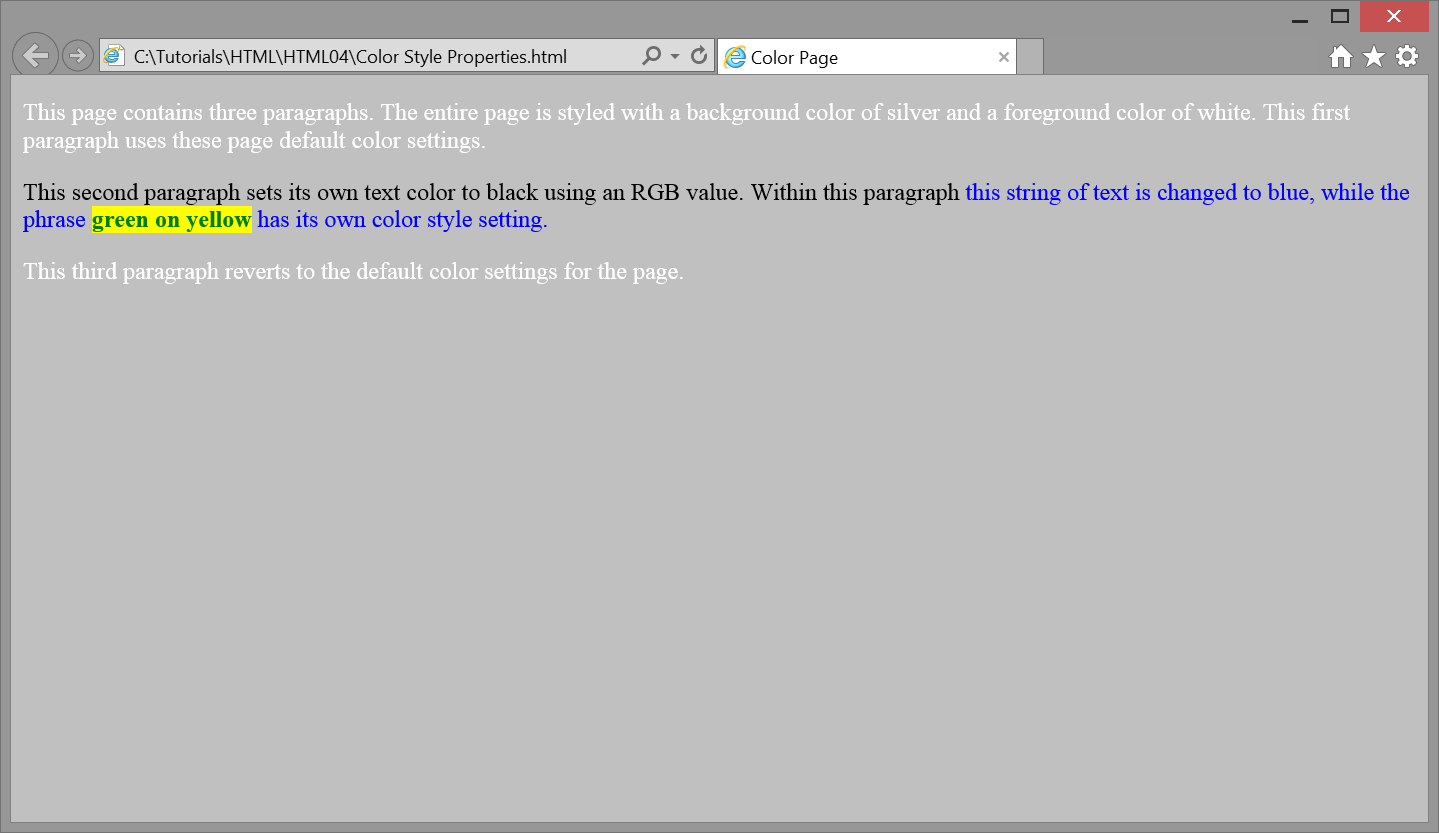
Figure 4-18.
Application of color style properties.
The entire page has a silver background with white lettering given by the style setting for the body selector. Three style classes are defined for application to the second paragraph in order to override these page settings. The PARAstyle class is applied to the paragraph to set its text to black [rgb(0,0,0)]; the PHRASEstyle class is applied to a portion of the paragraph to change its text color from black to blue [#0000FF]; the TEXTstyle class is applied to a substring of text to display green letters on a yellow background.
Of course, you are not likely to employ so many different colors on your pages since excessive use of colors can detract from the informational content on the page; however, the above example gives you an idea of how flexible it is to apply foreground and background colors to page elements.
Transparency - TOP
In addition to colors, elements can be given a transparency value through the CSS property opacity. The opacity property can be assigned a number value between 0 and 1, with 0 being fully transparent (invisible), and 1 being fully opaque (solid). For example, the following text is fully black (#000000), but has an opacity value of 0.5 which makes it halfway transparent. Since it is on a white background, it will appear grey.
opacity: 0.5; color: #000000;
Halfway transparent text
While this effect may seem somewhat trivial (being that you could have simply assigned the text to be grey), opacity can serve a variety of uses in creative web design. It can apply to a variety of elements such as images, and can be used when objects overlap each other with different CSS techniques.
Internet Explorer version 8 and earlier do not support the opacity property. These older browsers use the property filter. The filter property uses a functional notation to set the opacity of an object, where 0 is completely transparent (invisible) and 100 is completely opaque (solid). For example, setting an element with an opacity value of 50% like in the previous example would look like the following:
filter: alpha(opacity=50);
It can be helpful to include both the opacity and filter properties in order to provide maximum browser compatibility.
Gradient - TOP
CSS allows for more than just solid background colors. Color gradients may be used as well.
Gradients are smooth transitions from one color to another. They can be added to a web page using CSS and setting color stops, which tell the gradient which colors to transition to and from. A minimum of two color stops are required for any given gradient.
There are two types of gradients, linear and radial, which can transition from any set number of color stops and from any direction: top to bottom, left to right, even diagonal. Color stops can be specified by color names, hexadecimal code, or rgb values for any desired color. To increase the number of colors in a gradient, add more color stops in the order you wish for them to appear.
Gradients have not always been supported by the major browsers. Older browsers may have compatibility issues with gradients. These issues should not occur on browsers later than: Internet Explorer 10, Google Chrome 26.0, Firefox 16.0, Safari 6.1, and Opera 12.1. Earlier versions of Google Chrome, Firefox, Safari, and Opera supported gradients with an appropriate prefix in the CSS. Our examples will depict these prefixes.
Linear Gradients
Linear gradients transition in a straight line from one side of the container to the other. The default direction is from the top to the bottom of the container. If you do not specify a starting direction, it is assumed the gradient begins at the top.
Here is an example of a linear gradient with two color stops: #3399FF and #FF6600. This example shows the prefixes for older browser compatibility.
<!DOCTYPE html><html lang="en"><head><meta charset="utf-8"><title>Linear Gradient</title><style>#linearGradient{background: -webkit-linear-gradient(top, #3399FF, #FF6600);background: -o-linear-gradient(top, #3399FF, #FF6600);background: -moz-linear-gradient(top, #3399FF, #FF6600);background: linear-gradient(top, #3399FF, #FF6600);width: 200px;height: 200px;}</style></head><body><div id="linearGradient"></div></body></html>Listing 4-20. Code to apply a linear gradient.
Figure 4-19.
Example of a linear gradient.
Radial Gradients
Radial gradients transition in all directions from a given point in their container. These work in much of the same way as linear gradients but are declared differently. By default, a gradient starts in the center of the container and the shape is determined by the width and height of the container.
For example, if the container is a perfect square, the gradient will be a perfect circle. If the container is a rectangle, the gradient will appear to be more of an oval shape.
Here is an example of a radial gradient with two color stops: #3399FF, #FF6600, and #33CC33. This example shows the prefixes for older browser compatibility.
<!DOCTYPE html><html lang="en"><head><meta charset="utf-8"><title>Radial Gradient</title><style>#radialGradient{background: -webkit-radial-gradient(#3399FF, #FF6600, #33CC33);background: -o-radial-gradient(#3399FF, #FF6600, #33CC33);background: -moz-radial-gradient(#3399FF, #FF6600, #33CC33);background: radial-gradient(#3399FF, #FF6600, #33CC33);width: 200px;height: 200px;}</style></head><body><div id="radialGradient"></div></body></html>Listing 4-21. Code to apply a radial gradient.
Figure 4-20.
Example of a radial gradient.
TOP | NEXT: Special Characters
4.5 - Special Characters
Text Properties
The previous font settings can be paired with other style sheet properties to apply additional formatting to strings of text. The following table lists these properties that can bring more variety to text displays. Some of the properties pertain to styling the font itself, while others pertain to the structural arrangement of text within its container.
| Display Character | Name | Code | Description |
|---|---|---|---|
| " | " |
" |
Quote |
| & | & |
& |
Ampersand |
| ' | ' |
Apostrophe | |
| < | < |
< |
Less than |
| > | > |
> |
Greater than |
| ™ | ™ |
™ |
Trademark |
|
  |
Non-breaking space | |
| ¢ | ¢ |
  |
Cents |
| ¦ | ¦ |
¦ |
Broken vertical bar |
| § | § |
§ |
Section |
| © | © |
© |
Copyright |
| « | « |
« |
Left angle quote |
| » | » |
» |
Right angle quote |
| ¬ | ¬ |
¬ |
Not sign |
| ® | ® |
® |
Registered trademark |
| ° | ° |
° |
Degree |
| ± | ± |
± |
Plus/minus |
| ¶ | ¶ |
¶ |
Paragraph |
| · | · |
· |
Middle dot |
| • | • |
• |
Bullet |
| ¼ | ¼ |
¼ |
Fraction one-quarter |
| ½ | ½ |
½ |
Fraction one-half |
| ¾ | ¾ |
¾ |
Fraction three-quarters |
| ÷ | ÷ |
÷ |
Division |
| × | × |
× |
Multiplication |
| ø | ø |
ø |
Small o-slash |
| Ø | Ø |
Ø |
Large O-slash |
| – | – |
En dash | |
| — | — |
Em dash |
Figure 4-21. Special character names and codes.
As an example of using these special characters, the following code leaves five spaces between words by using non-breaking space ( ) and bullet (•) characters between them.
THERE  •  ARE  •
FIVE  •  SPACES  •
BETWEEN  •  THESE  •
WORDS.
Listing 4-22. Using special characters for Web page display.
THERE • ARE • FIVE • SPACES • BETWEEN • THESE • WORDS.Figure 4-22. Browser display of hard spaces and bullets.
Displaying HTML - TOP
If you need to display HTML tags as part of the text on a Web page, you cannot type "<" and ">" symbols. These characters are interpreted by the browser as enclosing HTML tags and would be treated as such. Instead, you must use the special HTML characters "<" and ">" to display these symbols. Assume that you wish to display the following HTML code on a Web page.
<p>This is a paragraph in which the word <span class="red">RED</span>
is displayed in red by surrounding it with a <span> tag to which a
style class is applied.</p>
Figure 4-23. Browser display of HTML code.
The above output needs to be entered in the text editor using special characters in place of < and > symbols.
<pre style="font-size:0.9em"><p>This is a paragraph in which the word <span class="red"><span class="red"></span>RED</span> is displayed in red by surrounding it with a <span>tag to which a style class is applied.</p></pre>Listing 4-23. Code to display HTML tags in the browser.
Styling Character Codes - TOP
You should note that the special character codes can have styles applied to them just as other alphanumeric characters. For example, the following equation is displayed in 1.8em bold Courier New font.
<style>.equation {font-family:courier new; font-size:1.8em; font-weight:bold}</style><p class="equation">¼ + ½ = ¾</p>Listing 4-24. Applying styles to character codes.
¼ + ½ = ¾
Figure 4-24. Character codes with styles applied.