Chapter 9 - Playing Multimedia
Chapter 9 introduces the use of multimedia in web pages, allowing developers to create richer and more engaging user experiences. You will learn how to incorporate audio and video content into a website using HTML, making it possible to present information in formats beyond text and images. Multimedia elements can enhance communication, improve accessibility, and help capture users’ attention through interactive content.
The chapter also explores best practices for embedding, controlling, and optimizing multimedia resources for the web. By understanding how to effectively use audio and video elements, you will be able to create dynamic web pages that provide a more engaging experience while maintaining usability and compatibility across different devices and browsers.
9.1 - Audio and Video Formats
Audio/Video Formats
One of the exciting results of the movement to broadband Internet connectivity is the growing reliance on sound and movies for delivering Web page content. High-speed network connections are capable of transmitting data at several megabytes per second which is a crucial need for delivering large audio and video files to the desktop.
Transmission Methods - TOP
There are two ways to receive audio and video files at your browser. One method is by downloading the file from a Web server. In this case, there are delays while the file is being transmitted to your browser. Despite the delay in downloading, modern browsers can begin playing the media before it all arrives at your desktop through progressive download methods. That is, playback takes place at the same time the file is being downloaded. After the file is downloaded, it is available on your PC for rapid reloading and replaying. Downloaded files can be saved to your desktop and thereafter accessed and played locally.
The second way of receiving multimedia content is through streaming methods. If audio and video files are hosted on a "media server" then that machine can transmit files as a continuous stream. It is not necessary to wait for a download to finish before playback begins. Usually there are a few seconds of delay while initial content is transmitted to the PC; thereafter, the browser receives a continuous stream of sound and pictures. While the transmitted portion of the file is being played, the next portion of the stream is being transmitted to and buffered (temporarily saved) on the PC to await playback. This interleaving of transmission and playback provides a continuous stream of multimedia content. Often, media files can be streamed at a rate that matches the bandwidth at which you are connected to the Internet. Streamed files are not downloaded; therefore, you do not receive a copy of the file.
Streaming methods are also used for live broadcasts. There are a few seconds of delay for initial transmissions to be received and buffered at the PC. While playback of the buffered content continues, the next portion of content is transmitted to and buffered on the PC to await playback. This ability of your computer to play buffered content at the same time that it receives and buffers transmissions produces a continuous stream of audio and video output.
Media Playback - TOP
In order to receive audio and video files, live media streams, and other types of media files, you must have the appropriate plug-in or helper application installed on your computer. When the browser loads a Web page that contains multimedia content, it will search for the appropriate plug-in configured to display the file type. If it cannot find the plug-in on the user's computer, the browser will prompt the user to download the file. The most common types of browser plug-ins include:
- Windows Media Player - Displays Windows Media Player for streaming audio and video
- Apple Quicktime Player - Displays the Apple Quicktime Player for audio and video
- RealPlayer - Displays the RealPlayer for streaming audio and video
- Adobe Flash Player - Displays .swf format files. These can contain audio, video, and iteractivity
- Adobe Shockwave Player - Displays high-performance media created using Adobe Director
- Adobe Reader - Used to Display documents in .pdf format
- Java Runtime Environment - Used to run applications utilizing Java technology.
The player or application needed depends on the formats in which media content is provided.
The following sections include use of Windows Media player; however, Apple QuickTime or RealPlayer can also be used. You should have the latest version installed. When using Windows Media Player, there are two ways to provide Web access to media files. You can create links to the files or you can embed the media within a Web page.
Linking to Media
You can link to media files just like you link to Web pages, with an <a> tag. In this case, the href attribute gives the URL to the file that is located either locally on the PC or remotely on a Web server. When linking to a media file, either a Media Player opens externally and plays the media file or a separate browser tab opens and plays the file.
 Walking in a Winter Wonderland - MGA Chamber Singers
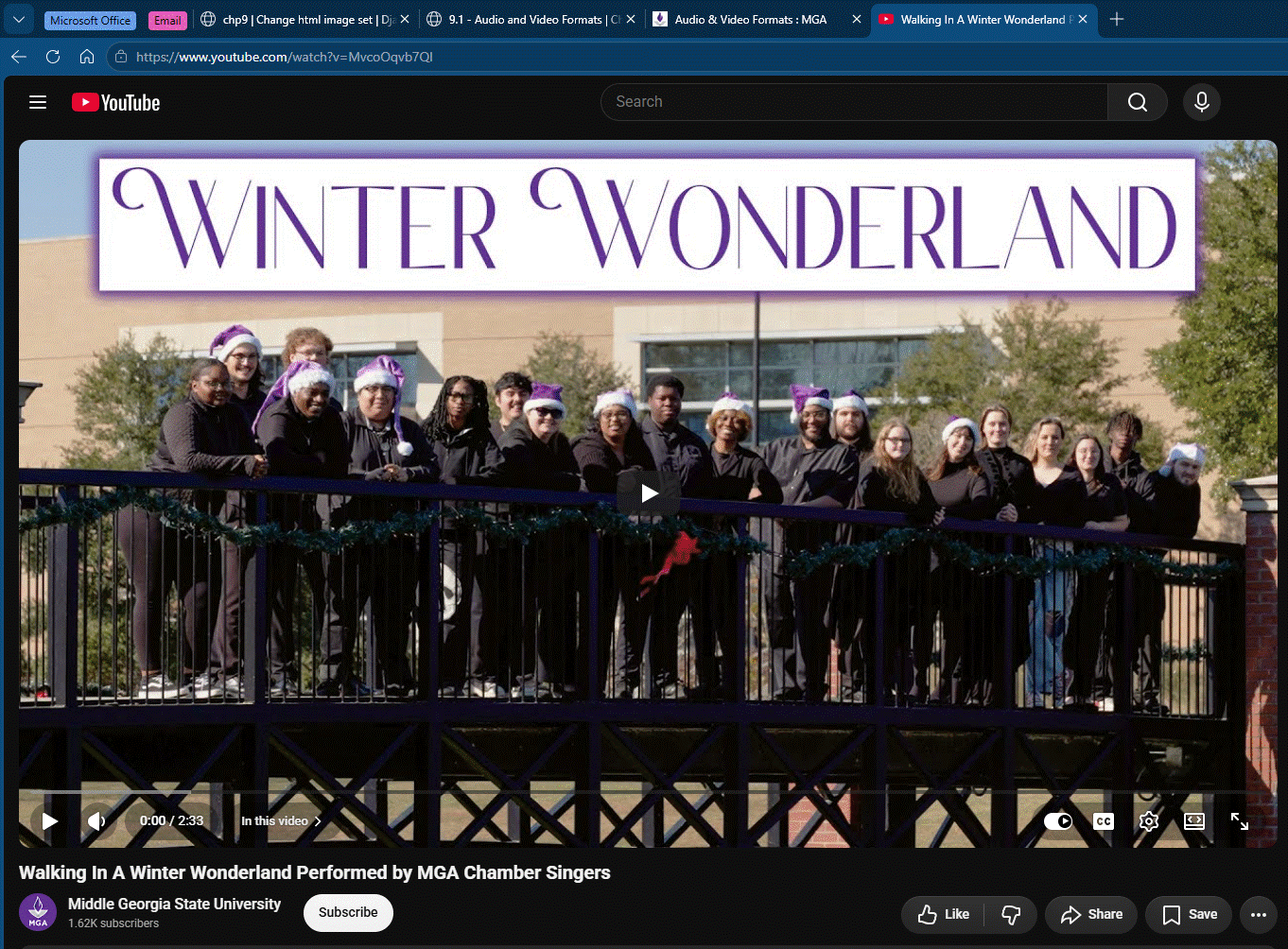
Figure 9-1. A separate browser window opens and plays a media file.
Embedding Media - TOP
The Media Player can be embedded on the Web page rather than opening in a separate window. In this case, the player is an element of the page, permitting close integration of sounds and pictures with other content on the page. When the player is embedded, the media plays only while viewing the page and stops when another page is accessed.
Figure 9-2. Embedding a video on a Web page.
The way in which access is provided to media files depends to a large extent on the capabilities of your Web clients. For browsers with slower Internet connections, presenting links to media files along with relevant information about file sizes gives the user the choice about whether to proceed with a download. An embedded player set for automatic playback could cause lengthy delays and an unhappy experience for the user.
For Web clients with broadband connections, the choice has more to do with page design considerations. If you anticipate continued browsing of your site with background or external playback, then you can provide links to media files. On the other hand, if playback is integral to other content on your page, then you will likely embed the media, and start playback when the page is opened.
Audio Formats - TOP
Several different sound formats are used for Web playback. They are characterized by the brands of computer systems they are designed to serve as well as by the sound quality that is provided. Sound quality depends on the type of sound compression technique used to digitize the file. This compression method is encapsulated within a sound codex (compression / decompression algorithm) that reduces file sizes by removing unnecessary signals or collapsing redundant or repeating signals. The most popular sound formats are briefly described in the following table.
| Format | Drescription |
| AIFF | Audio Interchange File Format. Developed for use on Apple Macintosh computers. It is also supported on Windows platforms using the extension .aif |
| AU | An older type of sound file that generally has poorer sound quality than new types of audio formats. Developed for use primarily on UNIX workstations. Provides mono playback. |
| MIDI | Musical Digital Interface. Limited to playback of sounds generated by music synthesizers. |
| MP3 | Uses advanced compression algorithm that results in smaller file sizes. Podcasts typically use this format. |
| RA | RealAudio. Proprietary format for streamed audio in real time. Produces small file sizes for lower bandwidth connections. Requires special player. |
| WAV | Developed for Windows computers. One of the most common formats for download files. |
| WMA | Windows Media Audio. Developed for streamed audio files. Very good quality for a variety of bandwidths. One of the most common formats. |
| M4A | Audio only MPEG-4 format supported by Quicktime, iTunes, and iPods |
Figure 9-3. Sound file formats.
Video Formats - TOP
As with audio formats, video file formats are characterized by the brands of computer systems they are designed to serve, and by the video quality that is provided. Video quality also depends on the type of codex used to digitize the file. The most popular video formats are summarized in the following table.
| Format | Drescription |
| AVI | Audio Video Interleave. Standard video format for Windows. Common for download files. |
| MPEG | Moving Pictures Expert Group. High compression and small file sizes for both audio and video playback. |
| RV | Real Video. Proprietary format for streamed video in real time. Produces small file sizes for low bandwidth connections. |
| MOV (QuickTime) |
Developed for Apple Macintosh computers. Files have .mov extension. One of the most common formats for Web downloads. Requires special player. |
| WMV | Windows Media Video. Developed for streamed video files. Very good quality for a variety of bandwidths. One of the most common formats. |
| FLV (Flash Video File) |
Flash compatible format exported by the Adobe Flash Video Exporter plug-in. This format is commonly used on YouTube. |
| M4V, MP4 (MPEG-4) |
Supported by Quicktime, iTunes, and iPods. |
Figure 9-4. Video file formats.
TOP | NEXT: Playing Audio
9.2 - Playing Audio
Playing Audio
Audio files can be downloaded from the Web for local playback. Audio files in MPEG and WAV formats are the most common types for downloads. Audio files can also be streamed from a media server computer. These can be in the form of live broadcasts or digitized files for on-demand retrieval. WMA format is a popular Windows format for streamed audio.
Linking to Audio Files - TOP
An audio file is made available for download and playback by placing it in your Web directory. Access to the file is through a simple link using an <a> tag coded with the relative URL to the file. When the link is clicked, the file is opened on the client's desktop in the external Media Player. The player provides progressive download so that the user does not have to wait for the entire file to download before playback begins. After the file is downloaded, it becomes available on the user's PC and can be replayed locally.
The following graphic and text links would connect to a WAV audio file appearing in the same directory as this Web page. Clicking on a link would open the external Media Player for file download and playback. The exact appearance of the Media Player on your desktop depends on how it is configured.
An example of how this would be coded is shown below. The href attribute of the <a> tags surrounding both the graphic image and text are URLs for the local WAV audio file.
<a href="PeopleWillCome.wav"><img src="PeopleWillCome.gif" alt="Kansas ballpark"/></a><a href="PeopleWillCome.wav">PeopleWillCome.wav (426 KB)</a>Listing 9-1. Code to link to audio file.
The <audio> Element - TOP
HTML5 introduced a new <audio> tag for standardizing the way audio files can be played in a browser. Codecs for audio can still differ between different system types, so for fallback functionality you may need to supply multiple sources to an audio element. The browser will try to load the sources in order, and if it cannot use a <source> it will display the error message.
<audio controls>
  <source src="PeopleWillCome.wav" />
  <source src="PeopleWillCome.mp3" />
  Your browser does not support the audio tag.
</audio>
TOP | NEXT: Playing Video
9.3 - Playing Video
Playing Video
There are no significant differences between accessing and playing video files versus audio files. Video files can be downloaded from the Web for local playback. Files in AVI and MPG formats are the most common types for downloads. Video files in WMV format can be streamed from a media server. These can be live broadcasts or digitized files for on-demand retrieval.
Linking and Embedding Video Files - TOP
A video file is downloaded by creating an <a> link with the URL to the file. The file is downloaded and opened in the external Media Player in the same fashion as for audio files. A link connects to a WMV video file appearing in the same directory as this Web page. When the link is clicked, the file would open in the external Media Player. The exact manner in which the Media Player appears on your desktop depends on how it is configured.
An example of how this would be coded is shown below. The href attribute of the <a> tags surrounding both the graphic image and text are URLs for the local WMV video file.
<a href="casablanca.wmv"><img src="casablanca.gif" alt="Casablanca"/></a><a href="casablanca.wmv">Casablanca.wmv (484 KB)</a>Listing 9-8. Code to link to video file.
Accessing and Embedding Video Streams
In modern web development, adding video to a webpage is straightforward and no longer requires external plugins like Flash or Windows Media Player. Depending on where the video is hosted, you will generally use one of two methods: embedding a third-party player (like YouTube or Vimeo) using an <iframe>, or hosting the video yourself and using the native HTML5 <video> element.
Embedding Third-Party Video Streams
The most common way to display streaming video is by linking to content hosted on dedicated video platforms. These services handle the complex video compression and streaming protocols for you.
Instead of hunting for a direct media URL in a player's properties, modern platforms provide an "Embed" option (usually found under the "Share" button). This generates an <iframe> tag that you can copy and paste directly into your HTML.
Figure 9-10 Embedding a streamed YouTube video.
<iframe
    width="560"
    height="315"
    src="https://www.youtube.com/embed/VsvaFxkXrbg"
    title="YouTube video player"
    frameborder="0"
    allow="accelerometer; autoplay; clipboard-write; encrypted-media; gyroscope; picture-in-picture; web-share"
    allowfullscreen>
</iframe>
Listing 9-11. Code to embed a third-party streaming video.
Note on Permissions: Many web-based video files have viewing restrictions or copyright protections. Always ensure you have the right to embed a video. If a video creator disables embedding, the
<iframe>will display a message directing the user to watch it on the host platform instead. Additionally, URLs can change or videos can be taken down, resulting in broken links over time.
Using the HTML5 <video> Element
If you have direct access to the video file (e.g., an .mp4 or .webm file) and are hosting it on your own server, you should use the native HTML5 <video> element. This tells the browser to use its built-in media player, completely eliminating the need for third-party plugins.
To ensure your video plays across all browsers, it is best practice to provide multiple video formats using the <source> tag, as well as fallback text for older browsers.
Video files can be embedded in a Web page by using the <video> tag in HTML5. The following example is from w3.org - HTML5 Video Events and API
Figure 9-9. Using a video tag to play video files.
<video id='video' controls preload='none' mediagroup='myVideoGroup'poster="http://media.w3.org/2010/05/sintel/poster.png"><source id='mp4' src="http://media.w3.org/2010/05/sintel/trailer.mp4" type='video/mp4'><source id='webm' src="http://media.w3.org/2010/05/sintel/trailer.webm" type='video/webm'><source id='ogv' src="http://media.w3.org/2010/05/sintel/trailer.ogv" type='video/ogg'><p>Your user agent does not support the HTML5 Video element.</p></video>Listing 9-10. Code to use a video to play video files.
The controls attribute is particularly important, as it automatically provides the user with play, pause, and volume buttons.
Live Video Streams (HLS and DASH)
Live streaming has evolved significantly. Today, live streams are typically delivered using protocols like HLS (HTTP Live Streaming) or MPEG-DASH.
While Apple's Safari browser can play HLS streams natively through the standard <video> tag, most other browsers require a lightweight JavaScript library (such as hls.js or video.js) to interpret the live stream data. If you are integrating live broadcasts, you will usually embed an <iframe> from a live-streaming provider (like Twitch or YouTube Live) or use one of these JavaScript libraries alongside the <video> element to handle the feed.
TOP | NEXT: Third Party Content
9.4 - Third Party Content
Embedding Third Party Content
In some cases, it is necessary to embed third party content such as external HTML pages or multimedia content into the current page. This can be accomplished using the <iframe> tag.
The <iframe> is used to specify an inline frame or inline window. Inline frames are often used in online advertising. Inline frames serve as a window within the current page to display other content such as a second HTML page. The second page contains the content that is embedded within the current page. The <iframe> is also commonly used to embed Youtube videos.
The <iframe> tag is coded as follows:
<iframe></iframe>Listing 9-12.
<iframe>tag
Note that a closing </iframe> tag is required even though it encloses nothing. You can additionally include any number of floating frames on a Web page.
The following table lists the attributes associated with the tag:
| Attribute | Description |
| src="URL" | URL to the external content |
| height="pixels" | A pixel value. Specifies the height of the iframe window. |
| name="iframe name" | name associated with the iframe. This value is used by links to target the iframe window. |
| sandbox = "sandbox" - Applies all restrictions "allow-forms" - Re-enables form submission "allow-pointer-lock" - Re-enables APIs "allow-popups" - Re-enables popups "allow-same-origin" - Allows the iframe content to be treated as being from the same origin "allow-scripts" - Re-enables scripts "allow-top-navigation" - Allows the iframe content to navigate its top-level browsing context |
Enables an extra set of restrictions for the content in an <iframe> |
| width="pixels" | A pixel value. Specifies the width of the iframe window |
Figure 9-12. <iframe> attributes.
The example below demonstrates how to embed a Youtube video using the iframe.
<iframe src="https://www.youtube.com/embed/MvcoOqvb7QI?si=K0-H5rNhnpeLtbtu" width="560" height="315">Figure 9-13. Examples of embedding a YouTube video.
The src attribute identifies the page to load initially into the frame. The name attribute assigns a name to the iframe as a target for links. You do not necessarily need to target the frame with links. You may simply wish to display a single external document inside the frame. In which case, you need only to specify a URL in the src attribute of the unnamed frame.
Both the width and height attributes can be used to set the dimensions of the iframe. These dimensions can also be set using CSS.
HTML 5 includes the new sandbox attribute that can be used with the <iframe> tag. The sandbox attribute is used to restrict content that can appear in the iframe window. The sandbox is a useful security feature. When it is included with the <iframe> tag, it tells the browser to disallow features that might cause a security risk to the site and its users. When the attribute is present, it will do as follows:
- treat the content as being from a unique origin
- block form submission
- block script execution
- disable APIs
- prevent links from targeting other browsing contexts
- prevent content from using plugins (through
<embed>,<object>,<applet>, or other) - prevent the content to navigate its top-level browsing context
- block automatically triggered features (such as automatically playing a video or automatically focusing a form control)